 TableMint
A table image.
A spreadsheet you can work with.
TableMint is the AI image-to-Excel tool at pictosheets.com. Convert table photos and screenshots, check the source, then organize and edit the extracted tables in a conversation.
Open TableMintEmail sign-in required · Limited free beta · Review AI output before use
Drop your images
Upload files or paste a screenshot. Keep dropping more images into the same workspace. PDF and TIFF let you choose pages; ZIP can contain still images.
Check the cells
Compare a selected cell with its source image. Correct text, preserve leading-zero IDs and choose appropriate column types. Drag column widths and row heights to make review easier.
Ask, then download
Tell Table agent how to combine or edit the tables. Resolve questions in the same conversation, review the result on the right and download an Excel workbook.
When one table spans several images
A long purchase list may arrive as two photos with repeated headings and a subtotal on each page. Upload both, then ask for one combined item list. State what to do with subtotals instead of silently mixing them into the item records.
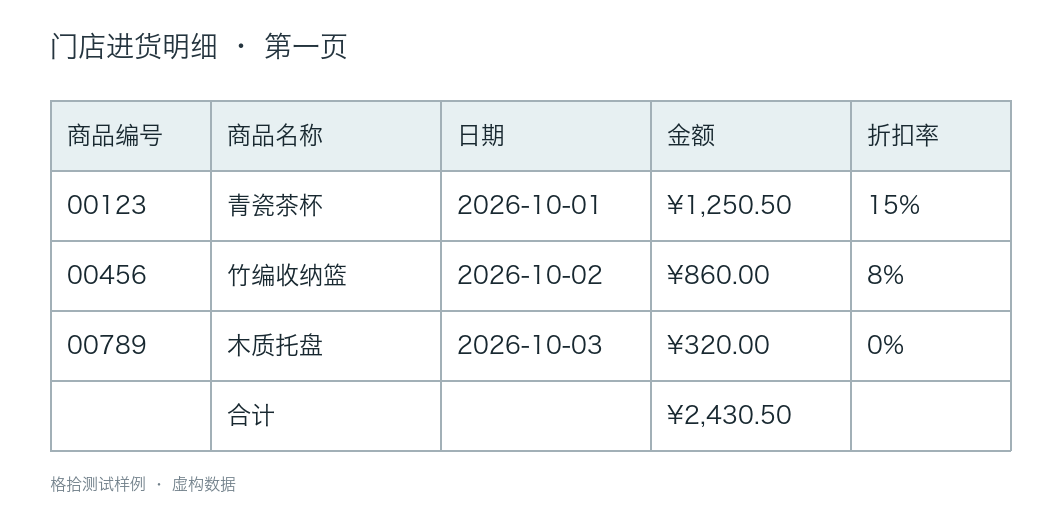
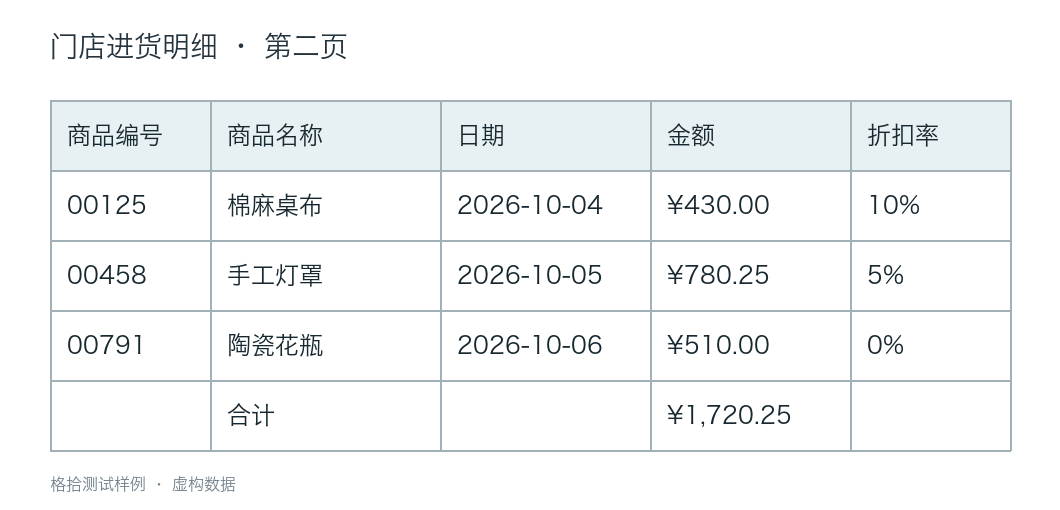
Illustrative workflow using synthetic test images. These are not customer documents or a claim of automatic recognition accuracy.
“Combine these two pages into one item list. Keep one header row, remove the page subtotal rows and keep product IDs as text.”
| Check | Expected for this example |
|---|---|
| Item records | 6, with one set of headings |
| Product IDs | 00123, 00456, 00789, 00125, 00458, 00791 |
| Page subtotals | Excluded from the item records |
| Source tables | Still available for comparison |
If these images are different documents rather than consecutive pages, say so. Shared column names alone do not establish that the records belong together.
Different images, different relationships
Continue or join a table
Append consecutive pages, handle repeated headings and overlapping records, or join the left and right halves of a wide table using a shared ID.
“Join these tables by product ID. Keep unmatched rows and show conflicting prices.”
Compare or collect documents
Compare versions, reconcile related lists, or collect the same fields from several documents. Specify the identifier and scope so unrelated customers or periods stay separate.
“Compare these two lists by order number. Show which amounts changed; keep both source values.”
Ambiguous relationships may require a follow-up answer. A shared position, similar name or familiar currency is not enough to guess a match.
Edit with a continuous conversation
The conversation has its own panel beside the table. Ask to sort, remove exact duplicates, filter records, rename columns, correct selected values or add a calculated column. Follow up with another instruction without starting a new import.
For example: “Sort Amount from largest to smallest,” then “Rename Amount to Purchase amount.” Review the visible table after each step. Use undo for an unwanted change; source tables remain available when a new combined result is created. The assistant can ask for clarification and may decline unsupported changes.
Before you upload
What files and exports are supported?
Common table images include PNG, JPEG, WebP, BMP, GIF, TIFF and HEIC/HEIF. The import interface also accepts PDF and image ZIP files. Current upload limits are 8 MB per file and up to 10 image pages per import. Password-protected or malformed documents can fail. Download Excel (.xlsx), CSV, JSON, text or Word; a saved TableMint project lets you reopen work.
How much is free?
Sign in by email for up to 2 free image-recognition calls per verified account per UTC day. Shared networks also have a 2-call free limit. The beta has a site-wide daily cap, so availability is not guaranteed. AI chat also depends on shared model capacity. Public paid purchases are not open yet; see pricing and current limits.
Will the spreadsheet be perfectly accurate?
No. Small text, blur, skew, handwriting and complex merged cells can produce mistakes. Review IDs, dates, decimal places, totals and cell boundaries against the image before using the export. A clearer photo or tighter crop may help; recognizing it again uses another recognition call.
Where is my data processed?
Recognition sends relevant images to DeepSeek. Table agent sends workspace cell text and conversation messages for the edits you request. This is a cloud service. Avoid sensitive documents and read the privacy policy for providers, temporary storage and optional device saving.